Connecting the Zebra CS6080 barcode scanner to your iOS device is a simple process when you have all the needed configuration codes in front of you. Thankfully, we’ve compiled all the needed info into one simple page. Follow the instructions below to get your CS6080 up and running in no time!
Step 1: Ensure the Device is Charged
There are two ways to charge the wireless CS6080. One is to use the [Zebra charging cradle][1] and the other is to use a [wireless charging pad][2]. Once the device is inserted into the cradle or placed on the charging pad, the LED at the top of the scanner should start to blink with orange light. When the device has fully charged, that light will turn into a solid green light. After the unit is fully charged, simply press the scan button to power on the scanner.Step 2: Set the Device Into the Correct Mode
Right now, your scanner is set to HID keyboard mode. This is great if you’re connecting to a PC, but if you are connecting to an iOS device, you’ll need to change the mode it’s in first. There are two modes that will cover the majority of iOS applications. The first is “SSI BT Classic Mode” and the other is “SSI BT with MFi”. Which mode you will need to use will depend on what your application supports. Please call your POS software developer if you’re unsure of your software’s requirements. If your software requires SSI BT Classic Mode, you’ll need to scan the barcode on the left below and then move on to Step 3. If your software requires SSI BT with MFi mode, you’ll scan the barcode on the right below and then move on to Step 3. Please Note: In order to use the MFi mode, you’ll need a special version of the CS6080 with MFi codes installed on the device. The MFI version of the scanner has a set of special instructions used by some iOS-based programs. You can determine if you have an MFI version of the CS6080 by removing the battery and looking at the label on the inside of the device. The part number (boxed in the photo below the barcodes) should read “CS6080-SR40004VMWW”. If a different number is present, you probably don’t have an MFI version. [The MFI version of the CS6080 can be found here.][4]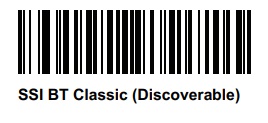
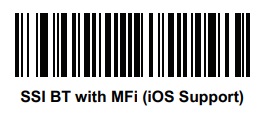
Step 3: Pair the Scanner to the iOS Device
On your iOS device, go to Settings > General > Bluetooth and turn Bluetooth On. You should see the CS6080 come up on the list of discovered devices. Select the device and allow it to connect. After the device is connected, you are good to go.Testing to See if it Works
You can open up the notes app, create a new note, and scan the below barcode with the device. The words “POSGuys” should appear. If nothing comes up, your device is not set up correctly. We suggest resetting the device to default settings by scanning the barcode found in the troubleshooting section, restarting your iOS device, and running through steps two and three again.Generated by POSGuys.com