**How to Secure and Lock Down your Label Templates by setting user permissions in BarTender 2021 R4.**
**Step 1: Open BarTender Designer**
Open the BarTender Designer software and select the label template you want to secure.
**Step 2: Access Document Password Settings**
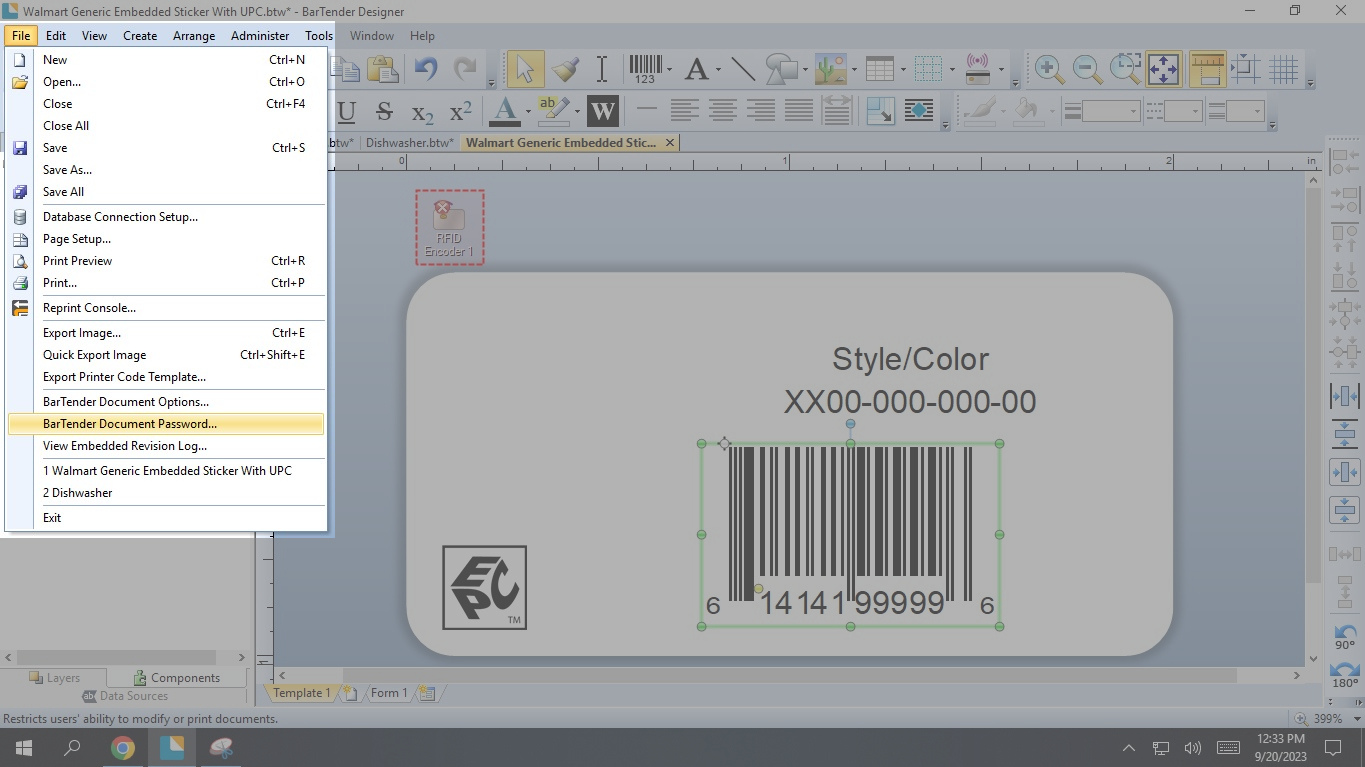
Go to File in the menu.
Select BarTender Document Password.
**Step 3: Set User Password**
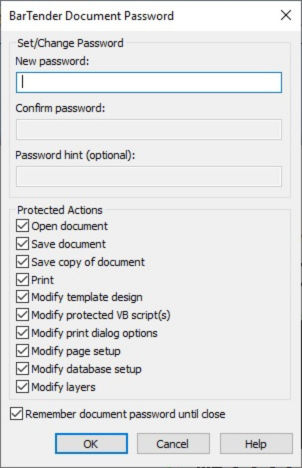
A prompt will appear.
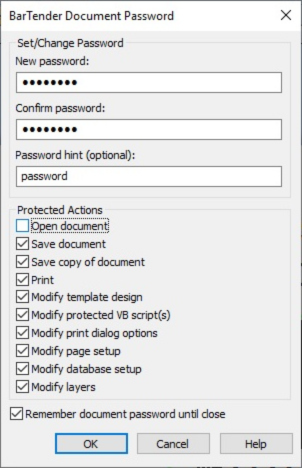
Set a user password and confirm it.
Optionally, you can also type in a hint.
**Step 4: Configure Protected Actions**
Below the password fields, you'll find a list of "Protected Actions."
Choose the actions you want to restrict. For example, you can restrict modification of templates, VB script, print setup, etc.
**Step 5: Save Changes**
Click OK to apply the settings.
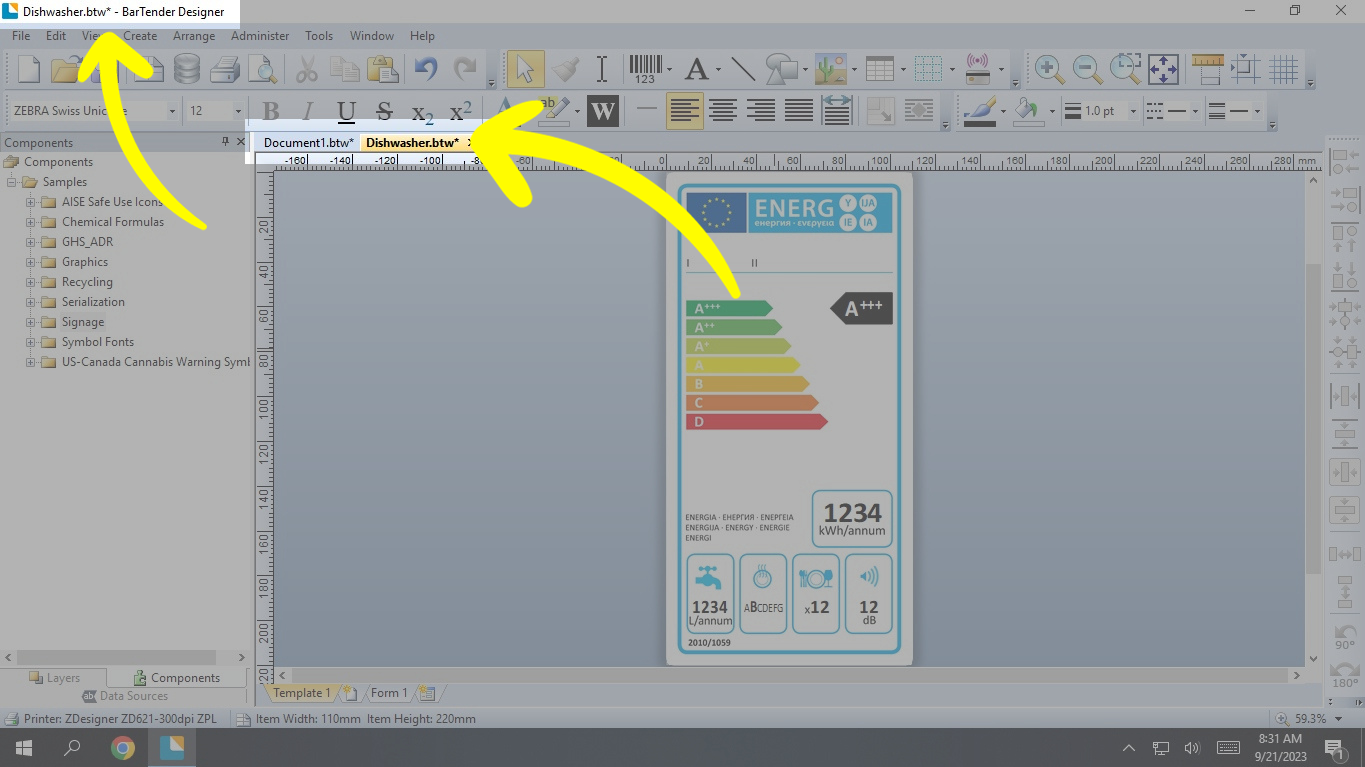
Save your document. An asterisk next to the template name indicates unsaved changes.
**Alternative Method: Use Administration Console for Global Restrictions**
**Step 1: Administration Console**
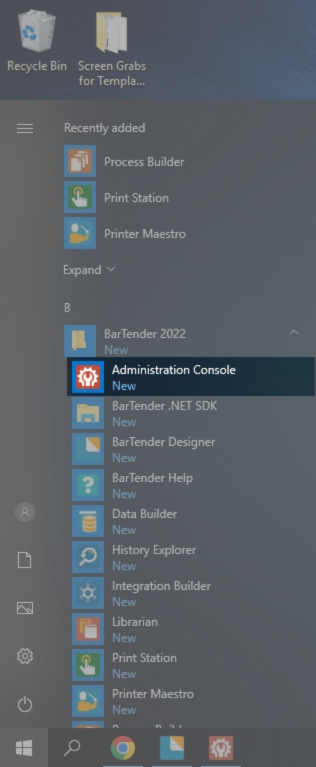
Open Administration Console
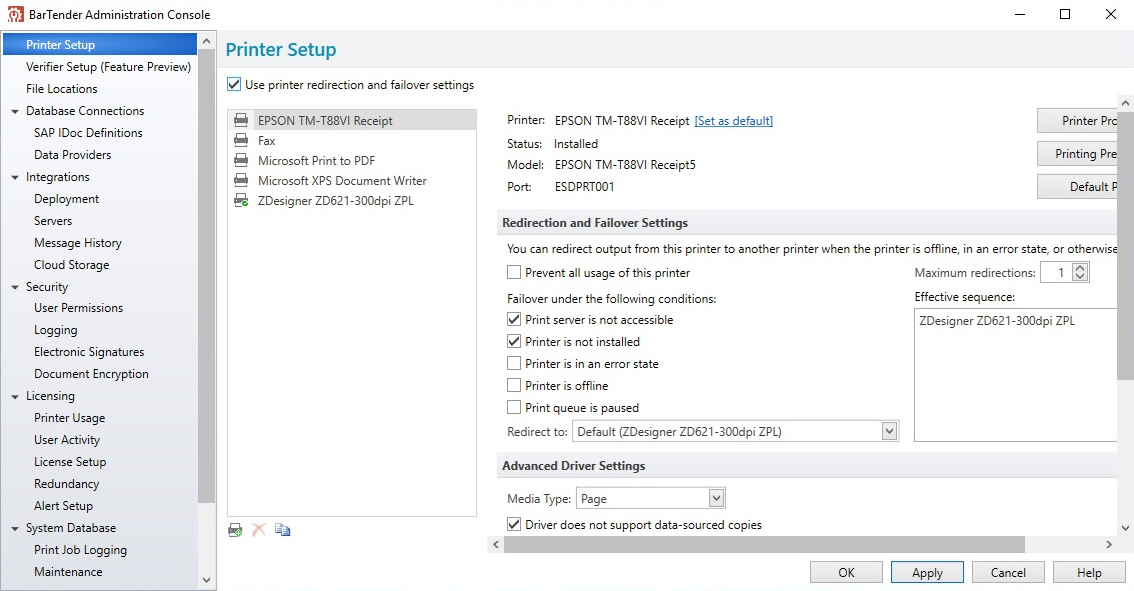
Open the BarTender Administration Console.
**Step 2: Enable Security**
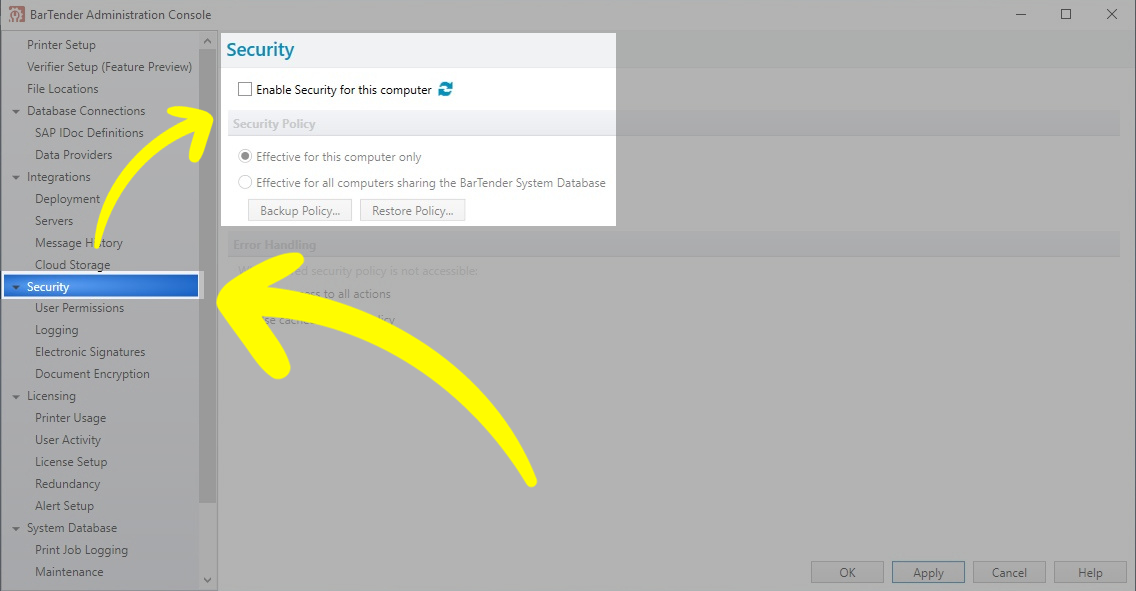
Go to the Security tab.
Enable security and choose the scope (this PC only or all PCs sharing the system database).
**Step 3: Set User Permissions**
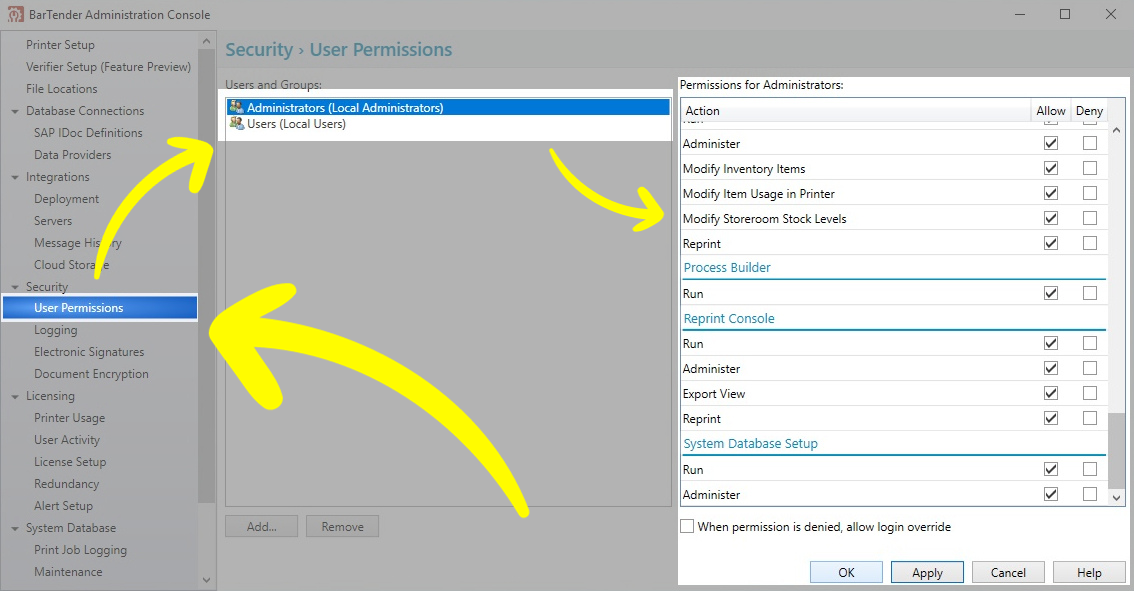
Go to User Permissions under Security tab. Restrict actions like modifying the system database, running the admin console, etc.
**Step 4: Apply Changes**
Click Apply to save the settings.