The Epson Colorworks C4000 inkjet label printer is the entry-level model for Epson’s line of inkjet label printers and is by far one of their most popular models in that line. It stands out from our other label printer offerings because of its unique printing mechanism, which involves using thousands of tiny nozzles to spray ink directly onto the label, much like the traditional desktop inkjet printers you're probably familiar with. This is in contrast to thermal label printers which utilize either heat to imprint on thermally-sensitive paper or rely on a roll of black ribbon that adheres to standard paper or plastic labels when subjected to heat – think of Zebra or Honeywell label printers.
We've seen a surge in demand for color label printers lately, with manufacturers and warehousing being the primary sectors driving this demand. However, we've also seen significant adoption in retail, craft beer and wine producers, chemical manufacturers, and the medical industry, just to name a few that come to mind. Essentially, anyone seeking to break away from pre-printed labels and the cumbersome two-step printing processes is turning to on-demand color label printing solutions.
And that makes sense. Instead of having to purchase a bunch of pre-printed labels from a specialty printer and deal with minimum order quantities and two-phase printing, you can just load up your design and print only the labels you need. That can save a lot of money in the long run - you’re not going to have to worry about wasting a bunch of labels because of misprints or because some regulatory change makes all your old labels obsolete. And at the end of the day, a color label with images is just nicer to look and catches peoples eye more - you know the old saying that a picture is worth a thousand words.
Printing Performace
The print performance is where the C4000 truly stands apart from a traditional printer. As mentioned earlier, it utilizes ink instead of heat, which means it doesn't require a printhead. Instead, it employs thousands of tiny nozzles to spray ink onto the labels. This design offers several advantages. First, you no longer have to worry about replacing printheads, saving you time and maintenance costs. Another is that you get to take advantage of a technology Epson calls “PrecisionCore”. With that, you’re going to be able to print at a much higher density than a traditional label printer. While most mid-range thermal printers top out at 300dpi, this printer can get to 1200dpi at 1.7” inches per second on 4” media and 360x360dpi at 3.4” per second when printing on 4” media. So that’s going to allow you to print very tiny words and barcodes without it being unreadable. This performance is similar to the C3500 which was the predecessor to the C4000.
The print speed and resolution are slightly improved over that model. Another advantage of the C4000 is its nozzle redundancy feature. In case any of the nozzles get clogged with ink, the neighboring nozzles automatically compensate, ensuring that your labels still print correctly. After completing a print job, the printer also takes care of cleaning the nozzles, avoiding ongoing issues. This is in contrast to a print head where once a part of that head is burnt out, you’re going to see a line running through all your labels until you replace the printhead. While the nozzle itself is rated for the life of the printer, there are other components that might need servicing later on it the product's lifecycle. The feeding mechanism is designed to handle approximately 6 miles' worth of media before any potential failure. Additionally, the auto-cutter has different ratings depending on the media used, ranging from 1.5 million cuts on paper to about 300k to 500k cuts with synthetic media.
While we’re talking about component lifespan, it makes sense to note that the printer will ship a 1 year standard manufacturer warranty but you can there are extended warranties that will increase that by 1, 2 or 4 years (up to a maximum of 5 years). There is also a Spare-in-the-Air plan offered by Epson for 1, 3, or 5 years. So if the printer was to go down for any reason, Epson do a next-business-day exchange of the entire printer so you’ll have that extra piece of mind if you’re relying on this printer to keep your operation moving. You can add an extended service plan coverage at the time of purchase or within 30 days of product purchase.
Media Options
Now turning our attention to media options, the C4000 accommodates media up to 4.1” wide with a 1.5” to 2” core. However, it can also support any diameter of media with an external roll holder when fed through the back. The market offers a wide variety of label manufacturers, providing labels in various sizes and materials to suit your specific needs. While standard sizes like 3x2s, 4x6s, and 2x1s are available, you also have the flexibility to use continuous linered media with the printer's auto cutter to achieve precisely the size you require. The printer's versatility extends to the types of media it supports. Along with traditional rolls of labels, you can utilize fan-fold media, blackmarked labels, wristbands, synthetic materials, and even plain paper if needed. Additionally, the optional paper tray can be attached to the front for convenient cutting of multiple single labels using the auto cutter.
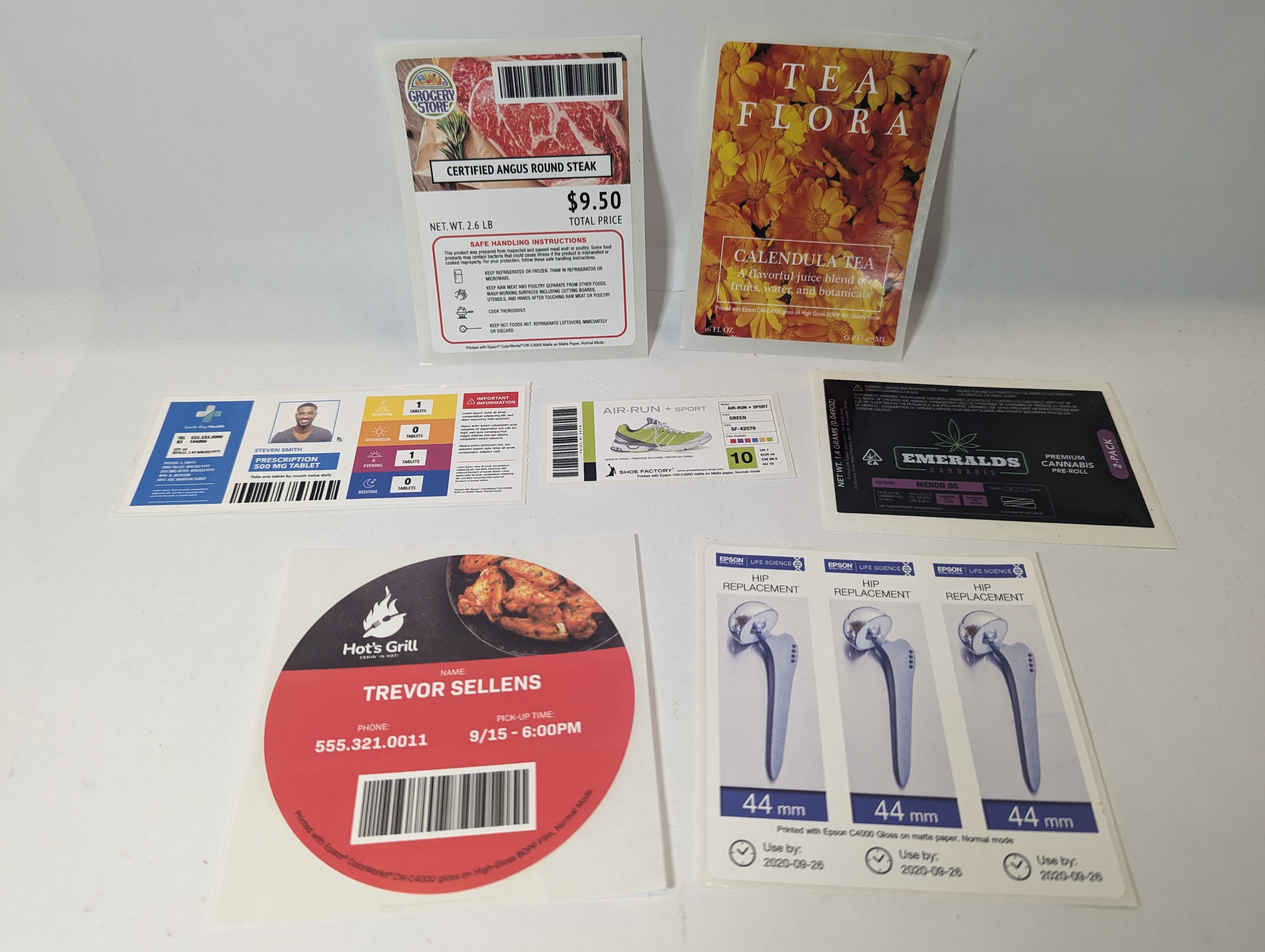
Matte vs Gloss Ink - What’s the Difference?
When it comes to media for this printer, it can be categorized into two major types: matte and gloss. The key difference between the two lies in the type of black ink used. Gloss ink offers a slightly shinier finish and allows printing on a wider variety of substrates. On the other hand, matte black ink delivers darker, sharper black text and images when used with matte media. It's important to note that while the gloss printer can handle both gloss and matte printing, the matte printer is limited to using matte ink only.
Once you use matte ink, switching back to gloss is not possible. So, if you prefer more flexibility, the gloss option might be the better choice. This distinction in ink applies specifically to black ink. The other three colors, Cyan, Magenta, and Yellow remain the same for both types of printers. Speaking of ink, the ink used in this printer differs from the standard ink you might be accustomed to using in a regular inkjet printer. The C4000 and other printers in this line use UltraChrome® ink, which is specially formulated to provide increased moisture and smudge resistance compared to standard ink. Additionally, it allows the printer to achieve higher printing densities and is BS5609 certified for maritime applications.
A Few Notes on Printing
One thing we did note is that the printer does use quite a bit of ink during the initial setup. The printer needs to prime all the nozzles and internal tubing so it’s not uncommon for almost half the ink to be taken out of the cartridge during initial installation, so don’t be worried when you see that. It’s normal. It also goes through a cleaning process every time you turn it on after having it sits for about a day. The cleaning process takes about 5 minutes, which seems a bit excessive - especially if you need a label real quick. There’s also a maintenance box here that needs to be periodically replaced. This collects ink that gets left over after print jobs and during cleaning processes.
Simple Configuration with an On-Board LCD Screen & Remote Management
Let's say a label didn't print exactly as you'd like, and you need to adjust some settings or perform troubleshooting. No worries, you can easily do that right from the front of the printer using the 2.7" LCD display and the 9-key pad. This user-friendly interface allows you to change media and printing settings, access troubleshooting features, and configure various aspects of the printer. The menu is quite comprehensive and gives you ample control over the printer's functions. While you could also edit these settings using printer drivers from a computer, we've found that the front display and keypad are often sufficient, saving you the trouble of having to use a computer for minor adjustments. Moreover, Epson offers a robust remote management tool, providing additional convenience for managing the printer from a distance. With all these options at your disposal, keeping this printer up and running smoothly should be a breeze.
Integrations & Connectivity
All versions of the Colorworks can support ZPLII / ESC emulation - so chances are you should be able to use just about any label template you might have prepared with this printer. There is driver support for Windows, Mac, and Linux operating systems and the printer has been certified with most major middleware printing applications - including Bartender, Nicelabel, Teklynx, enLabel, and CYBRA. It’s also been certified with a few other enterprise management tools like SAP. So for most warehouses and manufacturing centers, this should be a seamless integration with your existing workflow. In terms of connectivity, all C4000 models come with Ethernet and USB 2.0 ports. The Ethernet port is rated for both 10 100 and 1000 Base-T, providing reliable network connections. Additionally, there's an optional add-on module that enables WiFi connectivity, offering flexibility in how you connect and use the printer.
How Much Does The C4000 Cost To Use?
So let’s talk about cost. That’s what it all boils down to really in the end. So to start: the printer for sure isn’t the cheapest option on the market. As of time of recording, the C4000 sells for a bit over $2000 per printer. A mid-range desktop thermal label printer is going to run you anywhere from $400-$800 depending on the model you’re looking for while an industrial printer will run you about $1,500. And then there’s the label and ink costs. Getting exact numbers is tough but on average, if you're using a 4x6 label, it might cost around 5 cents per label, and the ink required to print a full-color image on that label may add around 3 cents, summing up to approximately 8 cents per label. Please note that your specific label might have a different cost. We can help you calculate a more accurate per-label cost by uploading your label art and providing you with details if you reach out to us. Comparing this 8 cents cost per label to a thermal transfer printer's cost for the same size label in black and white, you're looking at around 4 cents per label plus an additional cent for the ribbon, totaling approximately 4 cents per label. So from a purely cost-per-label standpoint, the Colorworks isn’t going to save you a ton of money. But there’s a bit more that goes into it and you do have a chance to save money long-term depending on how you’re operation is setup.
If you’re using color labels right now, you’re probably handling it in two ways. If you’re a small operation you might be using a standard inkjet printer with Avery-like die-cut label media. On the other hand, some businesses order pre-printed labels from specialty printers and conduct a two-step printing process, running the pre-printed label through a thermal printer to complete it. The first option is inefficient and doesn't support growth, while the second option can be cumbersome due to minimum order quantities and two-phase printing. This often leads to wastage of labels through misprints, overordering, or regulatory changes which would require you to print new labels. Not to mention the labor cost of needing to procure, inventory, and then print those labels. With a printer like the C4000, you can just load up your design and print only the labels you need. At the end of the day, that can save a lot of money in the long run.
[1]: https://posguys.com/pos-computer_42/Custom-America-Daytona_4051/