The TLDR for Busy Decision Makers
The TrueOrder™ kitchen display system is a new software offering from Epson that fills a big gap in the market as a true buy-once own-forever software platform. While relatively new software, the platform offers a host of industry-standard features and backs up those features with a competent support team and a wide net of compatible software. Initial setup can be tricky but once you’re up and running, the software is relatively easy to operate and maintain. This one-time purchase is balanced out with the need to purchase proprietary hardware with the software preloaded. You have your choice of two options: either an all-in-one touch computer or a media player that can be connected to any monitor.
If you can stomach the up-front hardware cost, the TrueOrder KDS software is a solid piece of software that will meet the needs of most small and quick-service kitchens.
Highlighted Features - No Frills, Just Standard Features
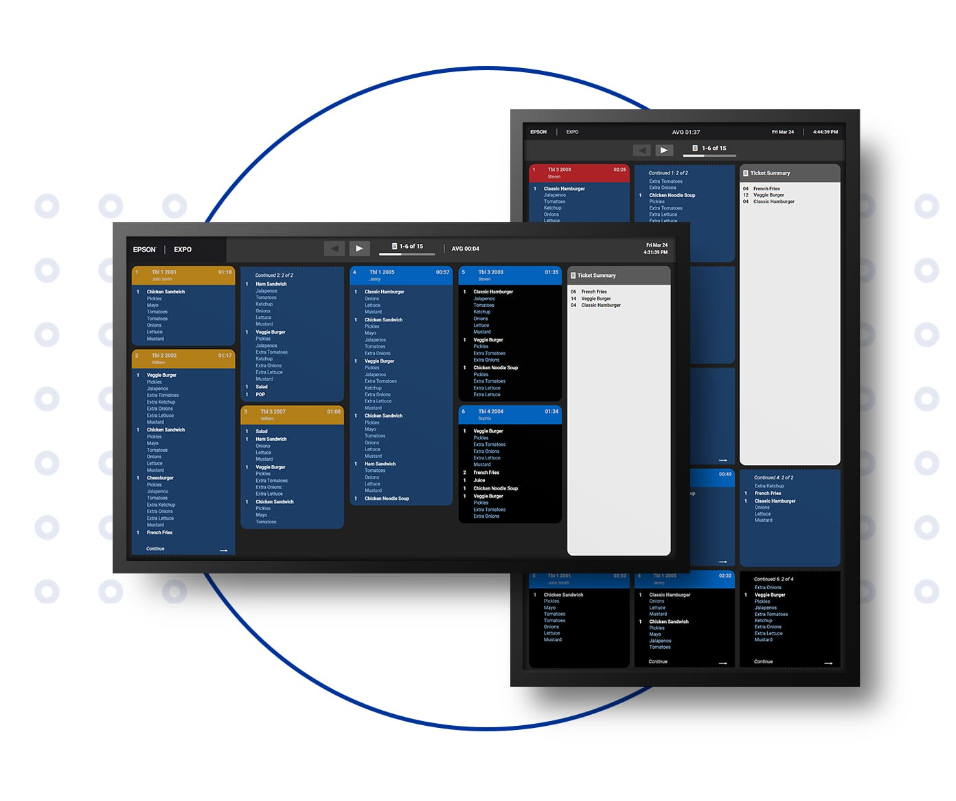
The TrueOrder KDS encompasses a standard feature set expected from a modern Kitchen Display System. It facilitates order bumping and recalls across up to nine KDS stations, each customizable to suit user preferences, including dedicated expeditor stations and customer-facing displays.
Each station can be connected to a separate Epson receipt or label printer for those who prefer to set up print-only stations or have drink/food labels printed after bumping the order.
The software also allows you to route certain items to designated KDS stations. This is helpful for restaurants with dedicated stations for certain food types. The caveat to this feature is that without a direct software integration (which we’ll discuss later) you’ll need to manually enter the exact names of your different items which can be a time-consuming process. For restaurants with a limited range of menu items, this might not be a big deal, however.
Two notable features are missing from the software. Customizable course firing times that allow you to delay certain items from sending to your KDS screens is the first of these features. This is especially helpful for fine dining establishments and the lack of this feature will limit its usefulness for some restaurants. The software also lacks an analytic dashboard outside of displaying the average bump time for that day’s orders. For more data-driven kitchen managers, this might be worth considering.
Software Compatibility
Unlike many KDS solutions on the market, TrueOrder is not a standalone software that can be downloaded off the app store and loaded onto any device. Instead, the software is accessible only by purchasing a special version of an all-in-one touchscreen computer or media player from MicroTouch — we’ll explore those options later in the review. One notable advantage of the TrueOrder KDS is its absence of ongoing monthly fees. Once the hardware is purchased, there are no recurring costs, providing a solution for businesses who would prefer to make a single capital investment as opposed to an ongoing operational expense. This is what really sets it apart in the market.
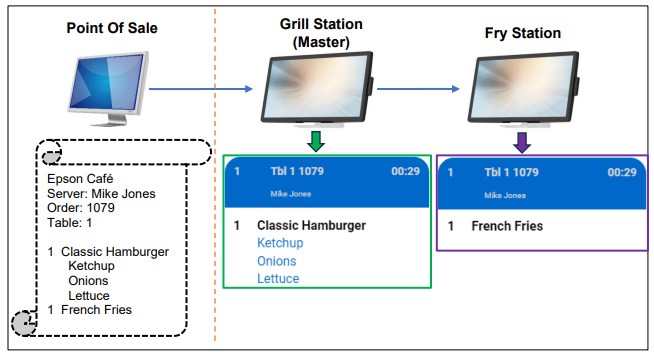
While Epson’s claim that the KDS software is POS-agnostic (i.e. compatible with any POS software) is technically true, don’t expect to connect the KDS to any software and get going right away. In order for the software to correctly display your menu items on the KDS screen, it requires a parser to be developed for each specific software. A parser is a special translator that tells the KDS how to display menu information for that specific software. The KDS acts as a receipt printer on your network and when your POS software sends a print job to the KDS “printer”, the KDS uses the parser to extract the ordered items and modifiers from the receipt information. Without the parser, the KDS won’t know how to interpret the receipt and display items incorrectly.
As of time of recording, Epson has parsers for 51 different POS softwares, including major softwares like NCR Counterpoint, Aldelo, Aloha, Talech, TouchBistro, and Shopkeep. Epson is continuously adding software so this number is sure to change as time goes by. They’ve also indicated that they can help develop a parser for your POS software if it’s not already on the software list. Please reach out to us for more information on this service.
Compatible Software List (As of March 2024)
- 2TouchPOS
- Aldelo
- Aloha (NCR)
- Arryved
- Bitekiosk
- Breadcrumb
- BrewPOS
- Brink
- Cake
- Casio 6000, 6600
- CBS
- ClusterPOS
- DBS4POS
- Digital Dining
- Dinerware
- Dooli’z
- Duet
- Encore
- Exatouch
- Focus POS
- Fujitsu
- Future POS
- Galaxy
- JCM POS
- LavuPOS
- LineSkip
- Linga
- MediaMix
- Micros 3700
- Micros E7,
- Micros Symphony R1/R2
- Microsale
- Milagro
- National Soft
- NCC Reflection
- NCR Counterpoint
- Nirvana
- Pixelpoint
- Positouch (StealthTouch M5)
- Restaurant Manager
- Rezku
- Shift4
- Shopkeep
- Silverware
- Speedline
- Skywire
- Squirrel
- Talech
- Tavlo
- Tend POS
- TouchBistro
- Volante
Hardware Options
When purchasing the software, you have your pick of two different form factors.
The first hardware option is a media player with HDMI support that allows you to turn any monitor or television into a KDS screen. The media player comes with WiFi built into the units but we’ve found that setup over a wireless connection can be a bit unstable, so we recommend a hardwired ethernet connection for most setups.
The second option is a 21.5” all-in-one computer with touch screen support. We found the touch computers to be well-designed and rugged. The computer is designed to operate in temperatures up to 140°F (60°C),which is adequate for most applications so long as you’re not using it directly above an oven or fryer. Both the media player and AIO computer are loaded with an Ubuntu operating system which can be tricky to navigate for non-tech-savvy users.
Either option can be connected to a bump bar. Epson provides default support for the LogicControls KB9000 bump bar but other bump bars can be set up with some simple configuration.
Receipt and label printing support is also available when using an Epson TM-T88 series of printers or a TM-L100 linerless sticky receipt printer. These devices can be connected to the KDS directly via USB. Receipts can be configured to include your logo, as well as custom header and footer information.
A Quick Word on Setup & Troubleshooting
All newly-released software comes with its fair share of quirks. TrueOrder KDS is no exception. We ran into a few glitches and bugs when we were setting up and testing this software. Some of these glitches didn’t have an immediately straightforward solution. From conversations with early software adopters, these quirks weren’t localized to us.
Thankfully, Epson also has a dedicated support team available to help. We’ve had the chance to work with them on a few customer KDS setups and the team has been prompt and professional in their interactions and follow ups. Epson has also prepared a comprehensive library of setup and troubleshooting documentation for those do-it-yourself-type operators. All this is to say that you should allow some time for setup and troubleshooting when adopting this software.
Finally, all configuration for the KDS is done through a browser-based portal. We found navigating through this portal to be pretty straightforward and intuitive. Setting up the customer display screen was a little tricky, but a quick skim through Epson’s support documentation cleared up confusion.