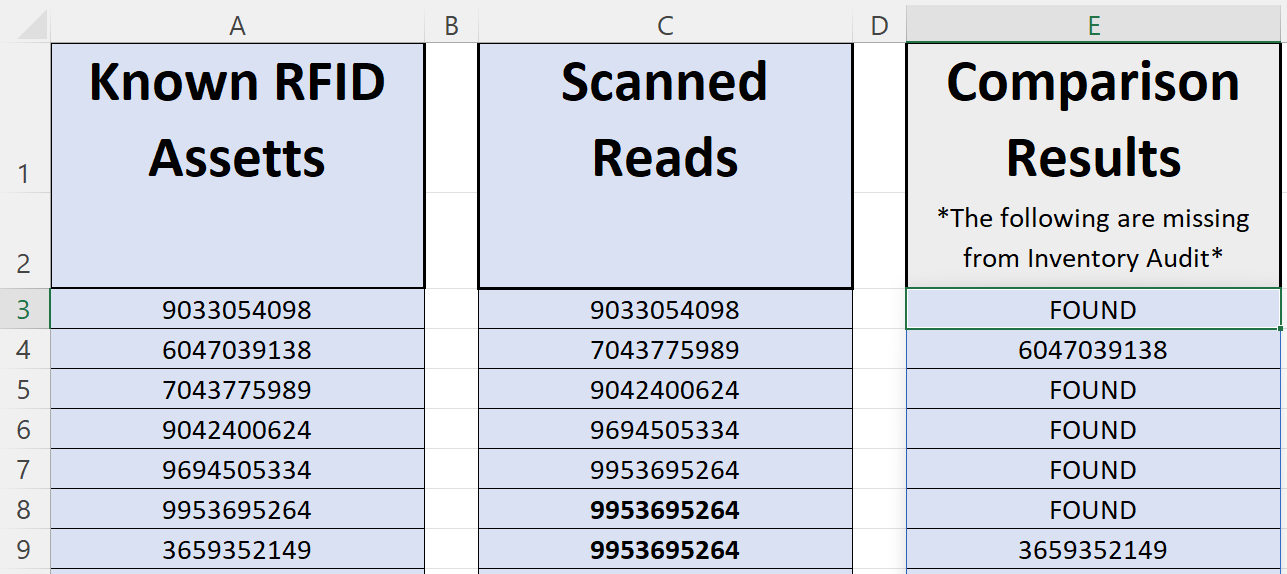
If you are looking for a convenient, lightweight approach to RFID, you can use Microsoft Excel to compare your scan results against an existing list- no expensive specialty software required.
In this scenario, you would import or create a list of existing RFID Values into a single column. You would then have a second column to scan your RFID Tags into, populating your second list. Lastly, you will have a third column comparing your scanned list against the first column and highlighting any missing values.
This process will allow you to quickly determine if any of your products or assets are missing from an existing list with a single walkthrough. From there, you can begin looking into finding your missing product.
This solution is ideal if you're looking to do a quick spot check of missing items from a relatively small inventory. Depending on the size of your inventory and warehouse, a more purpose-built solution might be needed. If you're interested in purchasing an RFID Reader or exploring RFID implementation, our experienced team can guide you through the options and connect you with the right technical resources. Reach out to us directly for a Free Consultation.

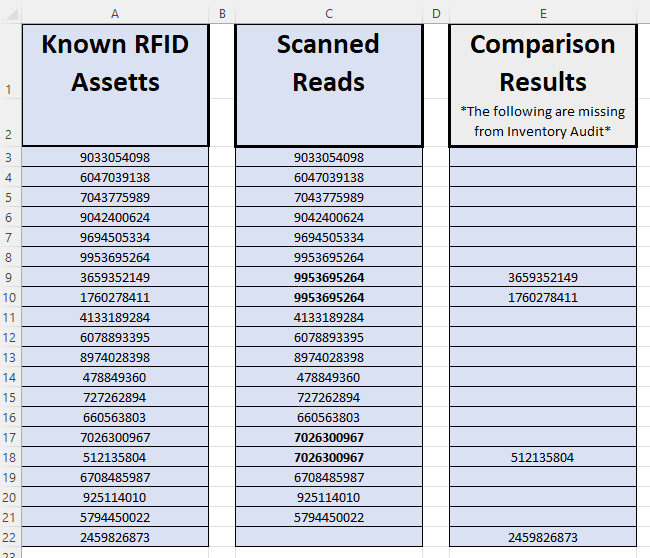
How to Setup Your Excel Document
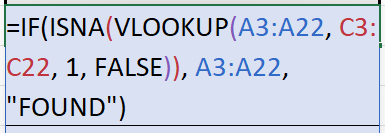
In this walkthrough, we are using the VLOOKUP formula together with the IF and ISNA Functions.
Here is the formula in the sample spreadsheet to the right, written in Column E, Cell 3:
=IF(ISNA(VLOOKUP(A3:A22, C3:C22, 1, FALSE)), A3:A22, "")
- Start by writing this Formula:
=IF(ISNA(VLOOKUP( - The next part is your Existing Inventory List which is defined by the range of cells your list is on:
=IF(ISNA(VLOOKUP(A3:A22, ) - The next set to be defined is the New List that you generate through your scans:
=IF(ISNA(VLOOKUP(A3:A22, C3:C22,) - After the new list is defined, you will enter a value of 1. Since we are using just one column, a value of 1 is all that is needed:
=IF(ISNA(VLOOKUP(A3:A22, C3:C22, 1,) - Now, we will use FALSE after specifying one column. This ensures an exact match of values. Be sure to use two closing parentheses after defining FALSE.
=IF(ISNA(VLOOKUP(A3:A22, C3:C22, 1, FALSE))) - Here, we will once again reference your Existing Inventory List:
=IF(ISNA(VLOOKUP(A3:A22, C3:C22, 1, FALSE)), A3:A22,) - Finally, we will use two double quotes to create the blank spaces in our Comparison Column.
=IF(ISNA(VLOOKUP(A3:A22, C3:C22, 1, FALSE)), A3:A22, "")) - Note, you can enter text within the two double quotes. See below for an example.
=IF(ISNA(VLOOKUP(A3:A22, C3:C22, 1, FALSE)), A3:A22, "Found"))