TabBand Labels: Loading & Calibration Guide
Media & Calibration Guide
Media & Calibration Guide This guide is to help you load your TabBand Labels, Calibrate your Labels and then Configure the Printer Driver Settings specifically for Windows users. If you need first-time setup assistance with connecting your smart device (Phone, Tablet, PC), please contact our Support Team. For macOS users, you can find the CUPS driver Here. Alternatively, open a web browser and search for 'Install CUPS driver for Zebra Printer in Mac OS,' then look for the Zebra Support Community search result with a matching title.
Toll Free: 1-800-903-6571
Telephone: 1-360-647-5681
Fax: 1-360-738-3530
E-mail: [email protected]
Business Hours: 6am - 5pm PST (Mon - Fri)
Support Hours: 7:30am - 4pm PST (Mon - Fri)
Loading Your Labels
- Use the yellow slide latches on the sides of the printer to open it, then lift the cover.
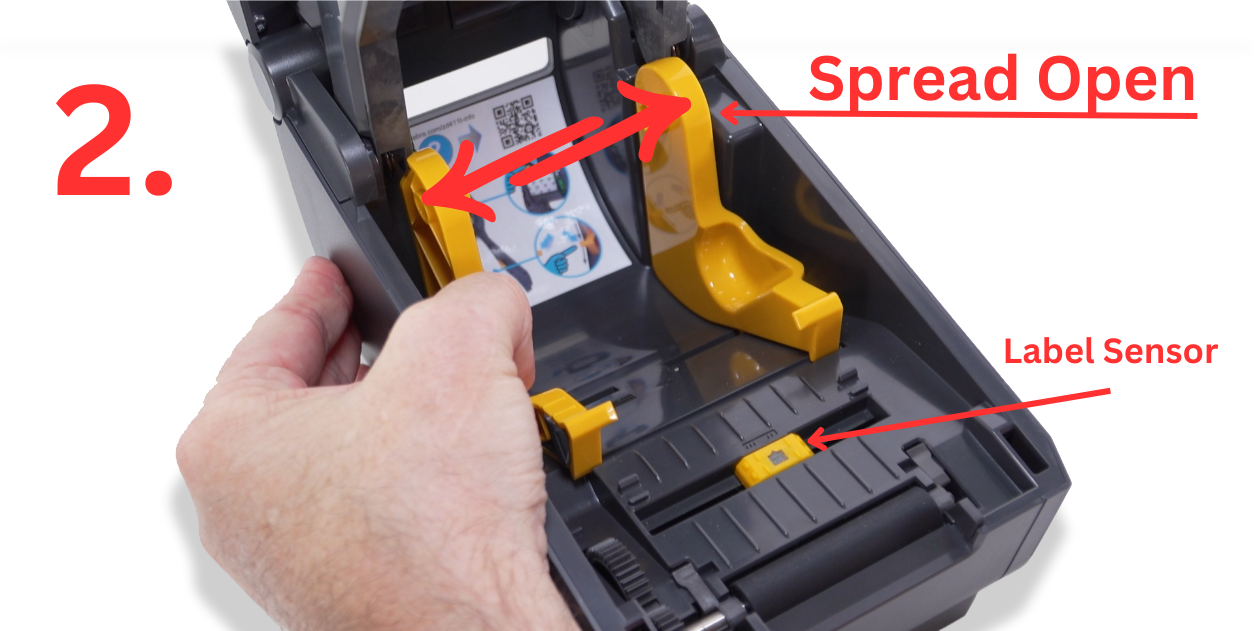
- Spread open the media roll holders and place the label roll onto them. Release the holders to secure the roll in place.
- Verify that the sensor is in the default center position.
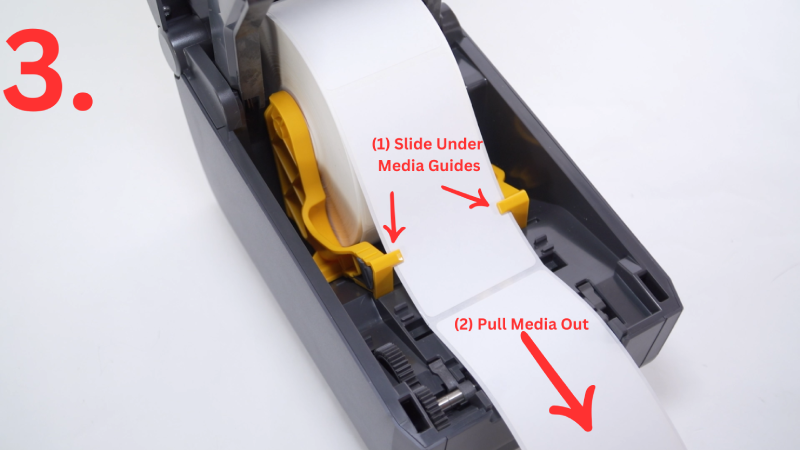
- Pull the labels forward so they extend out from the front of the printer.
- Slide the media under both guides, ensuring proper alignment.
- Close the printer lid.
.png)
Calibrating Your Labels
Your Zebra printer includes premium industry features, such as the Smart Calibration feature. To perform Smart Calibration:
- Hold down the Pause and Cancel buttons on your Zebra printer.
- The printer will advance several labels as it detects gaps and automatically adjusts for accurate positioning.
- Calibration is complete.
.png)
Printer Driver Settings
Please contact POSGuys Support if you need driver setup assistance.
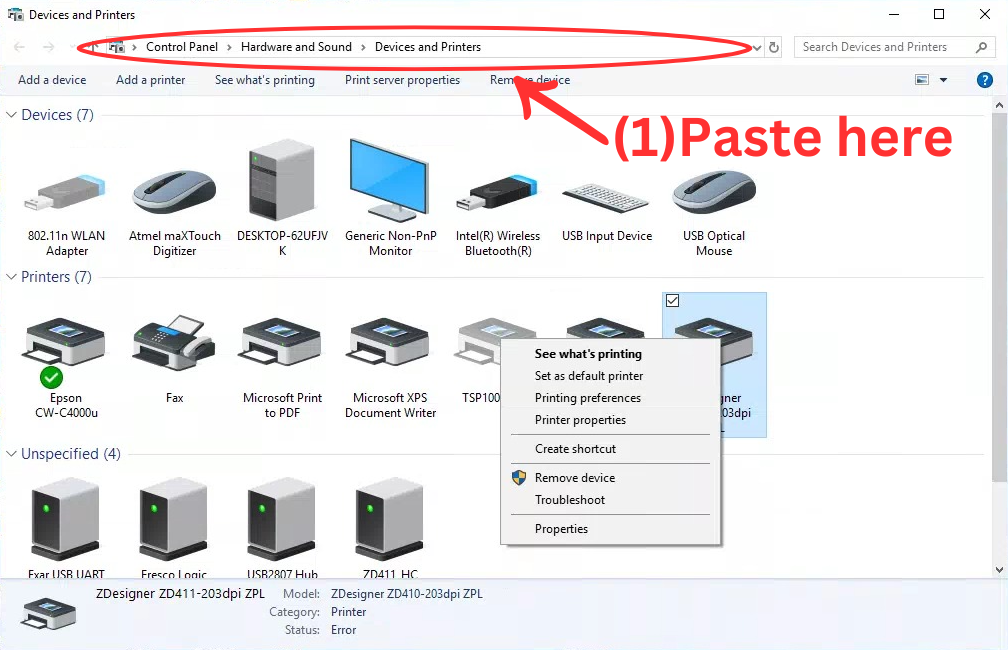
- Open Devices and Printers. You can quickly access this by pasting Control Panel\All Control Panel Items\Devices and Printers into a File Explorer window.
- Right-click your printer driver and select Printer Properties, then Preferences:
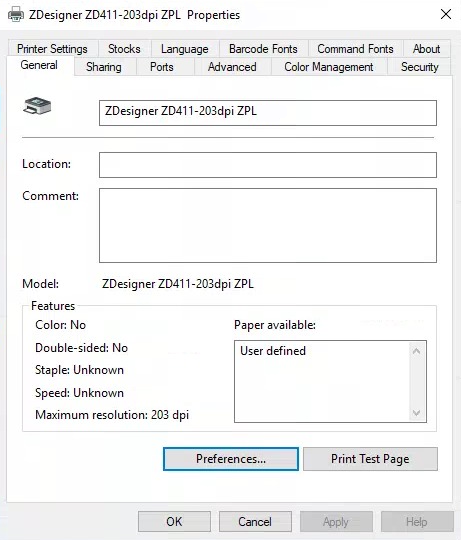
- Options Tab: In the Paper Format section, select inch, set orientation to landscape, and check rotate 180. Click Apply
- Advanced Setup Tab: Set Operation Mode to Peel; Off, Media Type to Thermal Transfer, and Tracking Mode to Web Sensing. Click Apply