Pairing a Socket Mobile Scanner to Windows (HID Mode)
When pairing the scanner to a Windows computer, the Socket Scanner needs to be placed in HID Mode to scan barcodes into text fields. Once in HID Mode, pair the scanner to Windows.
The easiest way to complete both steps is the Socket Mobile Companion Setup Application.
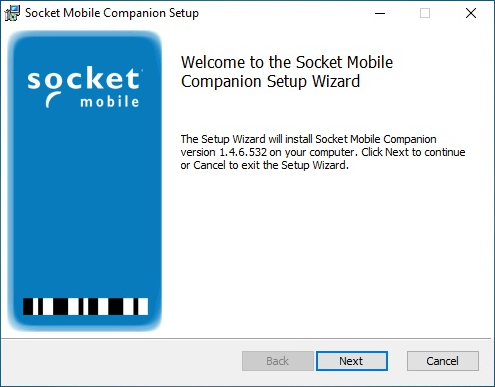
Setup
- Download the Companion App: Socket Companion Application.
- Start the application and follow the on-screen setup steps.
- After setup is complete, a new icon will appear in your Windows task tray.
- Right-click the Companion App tray icon and select Open.
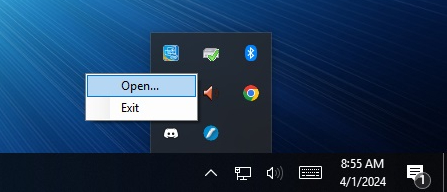
Pair and Test the Scanner
- Follow the on-screen instructions from the setup wizard.
- Ensure your mobile scanner is charged and available, since you will scan barcodes generated on screen.
- If you cannot scan on-screen barcodes or have a Laser Reader model (such as the S730), print the barcodes. See the section below.
- On page 4, select Bluetooth Settings to pair the configured scanner. This opens Windows Bluetooth so you can search for your Socket Scanner.
- After pairing, test in Notepad or another text field by scanning a barcode. If it inputs text, setup is complete. Your application may still require steps such as enabling Carriage Return (refer to the user manual).
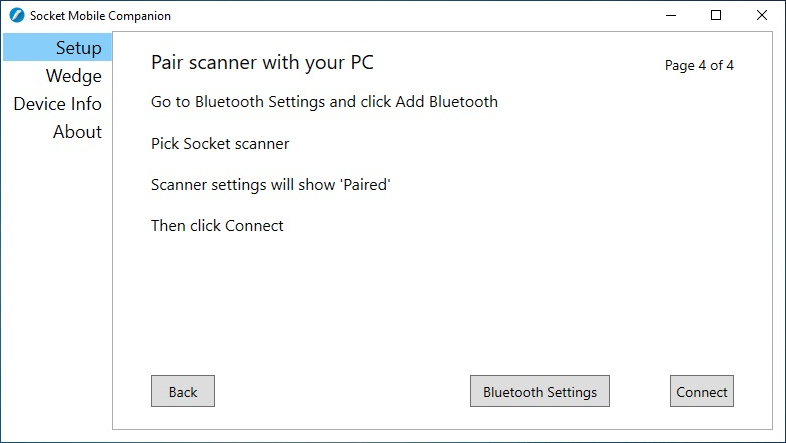
Companion Pairing Screen
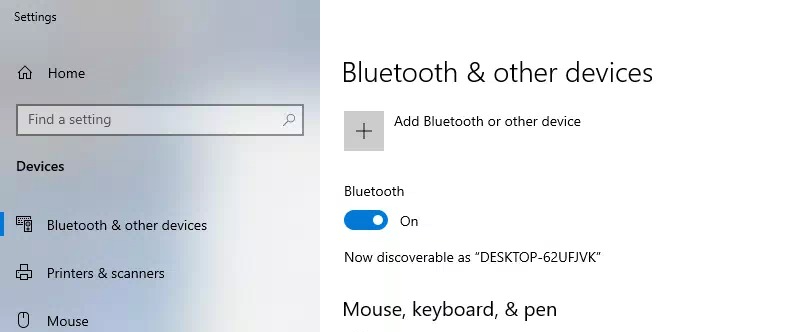
Windows Bluetooth Menu
Printing the On-Screen Barcodes
Barcode scanners that use a Laser Reader instead of an Imager cannot scan barcodes from a device screen. Laser readers rely on reflected light from physical bars, while imagers capture and decode a digital image.
- When the first barcode appears on screen, use Windows+Shift+S to open the screen capture utility. Select the barcode area, then paste (Ctrl+V) into Paint, Word, or another tool that supports image pasting.
- If Windows+Shift+S does not work, use Windows Snipping Tool. You can also use Print Screen and then crop the image.
- After capturing the barcode image, print the document and scan it with the Socket Scanner.